In this blog post, I will explain how you can migrate your AWS Dynamo DB to Azure Cosmos DB No SQL API in offline. The solution leverages GitLab CI/CD pipeline from downloading Dynamo DB data from S3 bucket to uploading JSON data into Azure Cosmos DB NoSQL API container.
Table of Contents
- Exporting AWS Dynamo DB table in AWS Console
- Migrating DynamoDB to Cosmos DB NoSQL API
- Tools and Services used
- Takeaways:
Now, we know that both Cosmos DB and Dynamo DB are globally distributed databases with ultra-low latency, highly available and scalable, they are still few differences on how they operate individually.
Now-a-days, many customers are migrating their Dynamo DB tables to Azure Cosmos DB due to various reasons. Out of all those, majorly below are the potential causes:
- Due to multi model flexibility available in Cosmos DB. (Mongo, Cassandra, NoSQL, Gremlin, Table APIs)
- Global reach or high availability of Azure Cosmos DB.
- Cost control via multiple options. It can be anything from choosing scaling to consistency levels.
- Cross platform integration can be one of the options too.
To start with the offline migration, follow the below steps as mentioned.
Exporting AWS Dynamo DB table in AWS Console
In my AWS console, I have created a Dynamo DB table CustomerOrders and inserted 4 records each having unique CustomerId (my partition key) and OrderDate as a sort key.
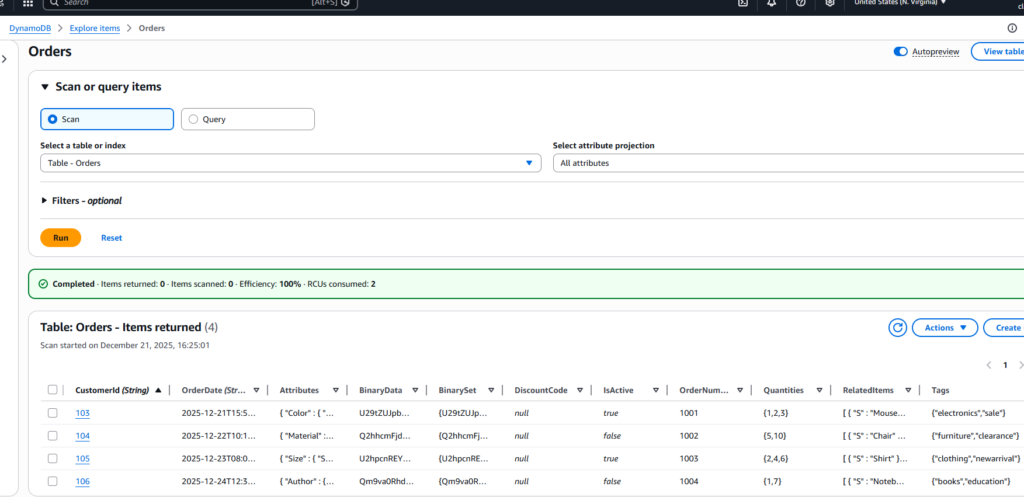
Also, check the data format of one of the Dynamo DB records as below for reference which includes all data types.
{
  "CustomerId": {"S": "106"},
  "OrderDate": {"S": "2025-12-24T12:30:15.999Z"},
  "OrderNumber": {"N": "1004"},
  "IsActive": {"BOOL": false},
  "Tags": {"SS": ["books", "education"]},
  "Quantities": {"NS": ["1", "7"]},
  "BinaryData": {"B": "Qm9va0RhdGE="},
  "Attributes": {
    "M": {
      "Author": {"S": "John Doe"},
      "Pages": {"N": "350"}
    }
  },
  "RelatedItems": {
    "L": [
      {"S": "Notebook"},
      {"S": "Pen"}
    ]
  },
  "BinarySet": {
    "BS": [
      "Qm9va0RhdGE=",
      "Tm90ZWJvb2tEYXRh"
    ]
  },
  "DiscountCode": {"NULL": true}
}
Most of the above datatypes are supported in Cosmos DB NoSQL API except Binary and Sets which requires conversion.
Now, do the full export of dynamo table to an S3 bucket in Dynamo JSON format as there is no option to export locally into your system. Please make sure that you assigned necessary permissions on the S3 bucket with a Dynamo DB Export policy and also turn on the Point-in-Time recovery on the Dynamo DB table before exporting.
Sadly, even for 4 records also it took 6 minutes of time to export to an S3 bucket.
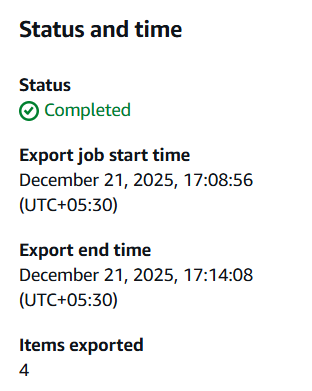
Exporting to an S3 bucket is now accomplished and it’s time to create an IAM User and an IAM Policy.
Before setting up things in Azure Portal, follow below steps in AWS.
- Create a new IAM User.
- Create a new IAM Policy for accessing and Listing items from S3 Bucket.
- Add the IAM policy to the new user.
- Create programmatic security credentials for the IAM user to access the S3 Bucket.
Do you want to know in detail on What are the pre-requisites for Dynamo DB to Cosmos DB NoSQL API Migration?
Login to the Azure portal and create a new Cosmos DB container in the cosmos account of NoSQL API flavor.
Note: The container and database can also be created using Python code as well. But in this blog post, I pre-created the container and database in the serverless cosmos NoSQL API account.
Migrating DynamoDB to Cosmos DB NoSQL API
For the migration, I preferred DevOps approach to automate the migration from Dynamo DB to Cosmos DB.
Below are the highlights,
- Download the AWS DynamoDB file from S3 bucket to GitLab Artifacts by zipping the file.
- Convert Dynamo DB JSON format to Standard JSON format.
- Insert the JSON data into the Cosmos DB container.
Try manually converting DynamoDB JSON to Standard JSON and upload to Cosmos DB via the Azure Portal.
The AWS IAM user security credentials, Azure Cosmos DB Account URI and Account Key are stored in GitLab variables by masking it.
Although the best approach is to use Service Principal to communicate to Azure Cosmos DB and is more secure than storing Cosmos account key in GitLab as a variable.
Read more on Cosmos DB NoSQL API:
Why should I convert DynamoDB JSON to Standard JSON format in Azure Cosmos DB?
Different methods for inserting data into the Cosmos DB NoSQL API using Python
Azure Cosmos DB Portal reference image:
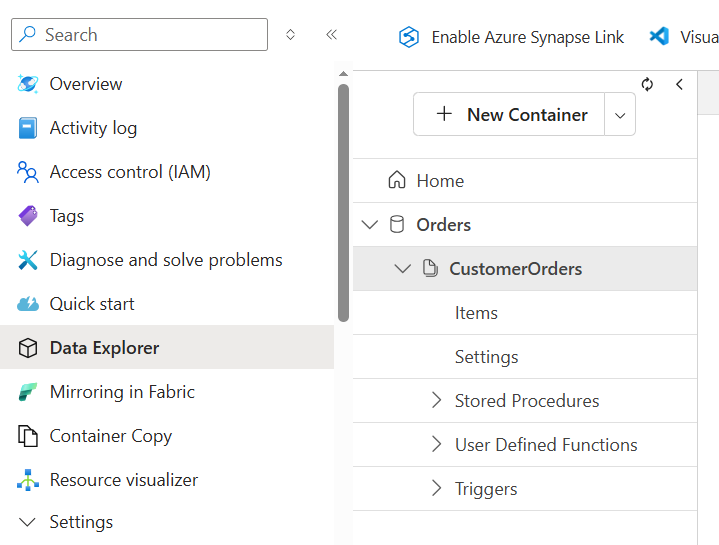
In the above image, database name is Orders and container name is CustomerOrders. The Cosmos DB doesn’t need a sort key specially.
Downloading S3 DynamoDB file
To download the S3 file, I used an AWS CLI image in my GitLab pipeline.
# Download files from AWS S3 bucket

download-s3-files:
  stage: s3-download
  # when: manual
  image:
    name: amazon/aws-cli:latest
    entrypoint: [""]  # <--- This is the fix
  before_script:
    # Update package list and install the zip utility
    - yum update -y && yum install -y zip
  script:
    - echo "Downloading S3 File..."
    - export AWS_DEFAULT_REGION="us-east-1"
    - aws s3 ls $S3_Migration_Bucket
    - aws s3 cp $S3_Migration_Bucket/data/AWSDynamoDB/01766317136531-9eca6adb/ AWSDynamoDB/ --recursive
    - zip -r AWSDynamoDB.zip AWSDynamoDB/

    # Clean up the folder so it doesn't duplicate space in the artifact
    - rm -rf AWSDynamoDB/

    # Verify the zip exists
    - ls -lh AWSDynamoDB.zip
  artifacts:
    paths:
      - AWSDynamoDB.zip
    expire_in: 10 min
Conversion to JSON format for Cosmos DB
For the conversion, I used Python image. To understand the script, you need an understanding of Python and Encoder (JSON) and working with files.
import zipfile
import gzip
import json
import io
import os
from decimal import Decimal
from boto3.dynamodb.types import TypeDeserializer

class CosmosEncoder(json.JSONEncoder):
    """Handles Decimal (Numbers) and Sets for Cosmos DB compatibility."""
    def default(self, obj):
        if isinstance(obj, Decimal):
            return int(obj) if obj % 1 == 0 else float(obj)
        if isinstance(obj, set):
            return list(obj)
        return super(CosmosEncoder, self).default(obj)

def transform_to_standard(raw_dynamo_json):
    """
    Deserializes DynamoDB JSON to Standard JSON.
    Handles 'B' (Binary) manually to prevent double-encoding.
    """
    deserializer = TypeDeserializer()
    output = {}

    # DynamoDB exports usually wrap the data in an 'Item' key
    item = raw_dynamo_json.get('Item', raw_dynamo_json)

    for k, v in item.items():
        # Manual fix for Binary (B) and Binary Sets (BS)
        # to keep the existing Base64 string from S3
        if 'B' in v:
            output[k] = v['B']
        elif 'BS' in v:
            output[k] = v['BS']
        else:
            # Let Boto3 handle String, Number, List, Map, Bool, Null
            output[k] = deserializer.deserialize(v)

    return output

def run_migration(zip_path, output_json):
    final_list = []

    if not os.path.exists(zip_path):
        print(f"Error: {zip_path} not found.")
        return

    with zipfile.ZipFile(zip_path, 'r') as zf:
        # 1. LISTING: Show all files inside the zip
        file_list = zf.namelist()
        print(f"--- Found {len(file_list)} items in {zip_path} ---")
        for name in file_list:
            print(f" Detected: {name}")

        # 2. PROCESSING: Extract and Transform
        for file_name in file_list:
            if file_name.endswith('.json.gz'):
                print(f"Processing Compressed File: {file_name}")
                with zf.open(file_name) as compressed_file:
                    with gzip.GzipFile(fileobj=io.BytesIO(compressed_file.read())) as gz:
                        for line in gz:
                            if line.strip():
                                raw_data = json.loads(line)
                                standard_record = transform_to_standard(raw_data)
                                final_list.append(standard_record)

    # 3. SAVING: Write the final list as a JSON array
    with open(output_json, 'w') as f:
        json.dump(final_list, f, cls=CosmosEncoder, indent=2)

    print(f"\nSUCCESS: Created {output_json} with {len(final_list)} records.")

if __name__ == "__main__":
run_migration("AWSDynamoDB.zip", "cosmos_final.json")I explained the above script in few lines as below,
- Pass the input file (DynamoDB) and output file name (JSON).
- The code looks through .gz files after unzipping and transform the DynamoDB JSON to Standard JSON format.
- For unsupported types of DynamoDB JSON data, a Class Encoder is used explicitly while writing the corresponding JSON to the JSON output file.
Inserting data into Azure Cosmos DB NoSQL API
Here, I used azure-cosmos package to ingest the data. Below is the Python code I used to ingest JSON file into Cosmos DB.
import os
import sys
import json
import uuid
from azure.cosmos import CosmosClient, PartitionKey
from azure.cosmos.exceptions import (
    CosmosHttpResponseError,
    CosmosResourceNotFoundError,
    CosmosResourceExistsError,
)

# Get the Arguments

COSMOS_ENDPOINT = sys.argv[1]
COSMOS_KEY = sys.argv[2]
CONTAINER_DATABASE = sys.argv[3]
CONTAINER_NAME = sys.argv[4]
JSON_FILE_PATH = sys.argv[5]

# Validation

if not COSMOS_ENDPOINT or not COSMOS_KEY:
    print("ERROR: COSMOS_ENDPOINT and COSMOS_KEY are not specified to the script.")
    sys.exit(1)

# Initiate a client connection using Key.

client = None

try:
    if not COSMOS_ENDPOINT or not COSMOS_KEY:
        raise ValueError("Missing COSMOS ENDPOINT or COSMOS KEY.")

    client = CosmosClient(url = COSMOS_ENDPOINT, credential = COSMOS_KEY)
    database = client.get_database_client(CONTAINER_DATABASE)
    container = database.get_container_client(CONTAINER_NAME)

    print("Connection successful to Azure Cosmos DB NoSQL API Account")

    # Read the JSON file
    with open(JSON_FILE_PATH, 'r') as file:
        data = json.load(file)

    # Ensure data is a list
    if isinstance(data, dict):
        data = [data]
    elif not isinstance(data, list):
        raise ValueError("JSON file must contain a list or a single object.")

    total_items = 0
    print("Inserting the JSON items into Comsos DB Container")

    # Process and insert items
    for item in data:

        # create item in Cosmos DB
        container.create_item(
            body = item,
            enable_automatic_id_generation = True
        )
        total_items += 1
    print(f"Total items successfully inserted into Cosmos DB Container: {total_items}")

except CosmosResourceNotFoundError as e:
    print(f"[ERROR] Resource not found: {e}")
    sys.exit(2)
except CosmosHttpResponseError as e:
    print(f"[ERROR] Cosmos HTTP error: {e}")
    sys.exit(3)
except Exception as e:
    print(f"[ERROR] Unexpected failure: {e}")
    sys.exit(5)
finally:
    if client is not None:
client = NoneAfter executing the script, I was able to create 4 JSON items into Cosmos DB container.
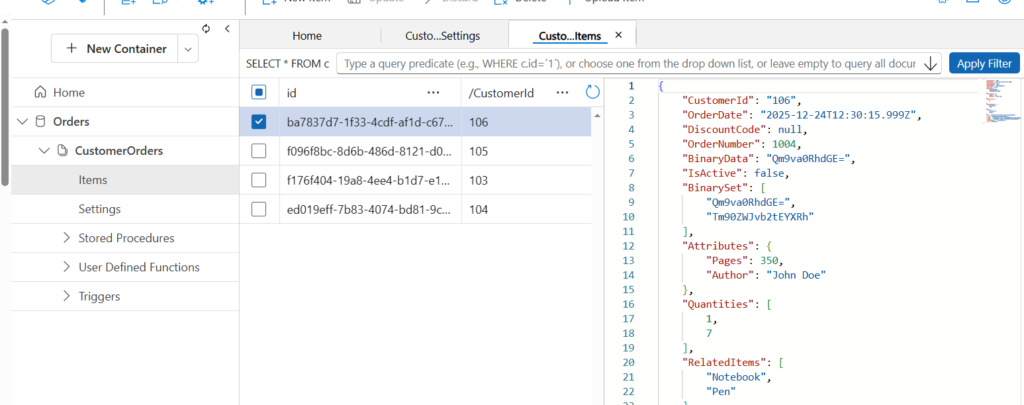
Please make sure that you are aware of what is partition key, Cosmos DB Account URI, Cosmos Key, Container and Database in Azure Cosmos DB NoSQL API.
Tools and Services used
In AWS:
AWS Dynamo DB
AWS S3
AWS IAM user for security credentials
AWS IAM policy
In Azure:
Azure Cosmos DB NoSQL API account
Azure Account URI and Account Key
Tools:
GitLab personal account
- Python image
- AWS CLI image
Takeaways:
The migration of DynamoDB to Azure Cosmos DB NoSQL API is simple when you set all the permissions correctly both at AWS S3 and Azure Cosmos DB. This is not a production ready code as it needs changes depending on your requirements.
On Security front:
The current solution uses AWS secret keys of an IAM user which is less secure. Use IAM role with temporary credentials.
The current solution uses Azure Cosmos DB Account Key which is less secure. Use Service Principal with necessary permissions in place.
On Scalability:
The current solution to ingest data into Cosmos DB using python is not scalable for GB or TB of data. Use Java or .NET with bulk executor library to ingest data into Cosmos DB NoSQL API.
For the full YAML file code, please read YAML file code of AWS DynamoDB to Azure Cosmos DB NoSQL API Migration.
Please feel free to comment or suggest if anything is incorrect in the code or the solution approach.
Disclaimer: This content is human-written and reflects hours of manual effort. The included code was AI-generated and then human-refined for accuracy and functionality.