In this blogpost, let’s discuss the pre-requisites needed for the Dynamo DB to Cosmo DB NoSQL API offline migration.
Table of Contents
AWS requirements:
Dynamo DB table:
In AWS, we need a Dynamo DB table and a few records in it. Please create a new Dynamo DB table if you don’t have one at AWS Console. Watch the Dynamo DB creation video on YouTube.
Please note the partition id of the table as we need it for later part in Azure.
Don’t hesitate to take help from Amazon Q as he can be your assistant and that how we should work now-a-days. It is available in AWS console, and you can ask questions whenever you are stuck while working inside AWS.
If you want to test the migration for all data types of Dynamo DB table then please refer to the below Dynamo JSON script and create few records accordingly.
{
  "CustomerId": {"S": "106"},
  "OrderDate": {"S": "2025-12-24T12:30:15.999Z"},
  "OrderNumber": {"N": "1004"},
  "IsActive": {"BOOL": false},
  "Tags": {"SS": ["books", "education"]},
  "Quantities": {"NS": ["1", "7"]},
  "BinaryData": {"B": "Qm9va0RhdGE="},
  "Attributes": {
    "M": {
      "Author": {"S": "John Doe"},
      "Pages": {"N": "350"}
    }
  },
  "RelatedItems": {
    "L": [
      {"S": "Notebook"},
      {"S": "Pen"}
    ]
  },
  "BinarySet": {
    "BS": [
      "Qm9va0RhdGE=",
      "Tm90ZWJvb2tEYXRh"
    ]
  },
  "DiscountCode": {"NULL": true}
}
PITR Enabling:
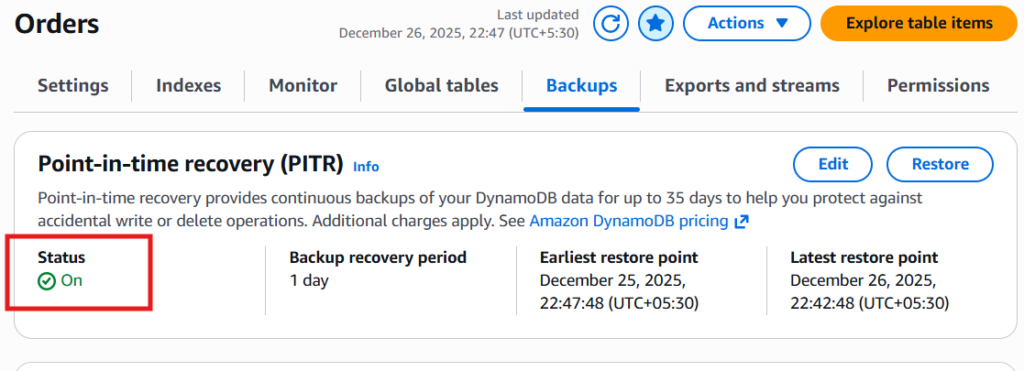
Turn on the PITR (Point in time recovery) mode for the Dynamo table under Backups.
S3 bucket:
To export the Dynamo DB table, we need an S3 bucket in AWS. Please create an S3 bucket if you don’t have one available otherwise use any existing bucket.
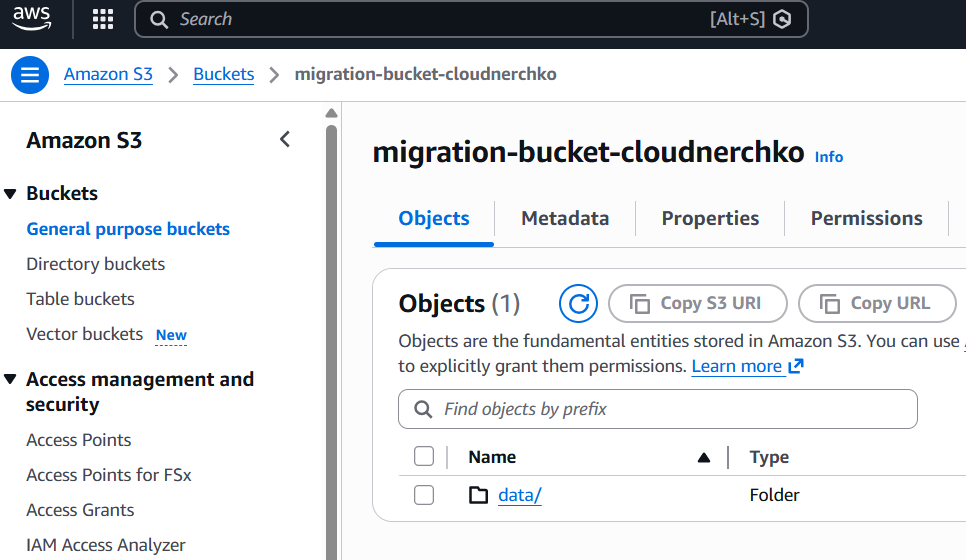
For storing the export data, I explicitly created a folder inside my s3 bucket.
Assign Policy in S3:
To upload the data into S3, Dynamo DB needs access permissions on the bucket. To allow this, I assigned a bucket policy in the S3 bucket under Permissions tab.
{
    "Version": "2012-10-17",
    "Statement": [
        {
            "Sid": "AllowDynamoDBExportToS3",
            "Effect": "Allow",
            "Principal": {
                "AWS": "arn:aws:iam::XXXXXXXXX:root"
            },
            "Action": [
                "s3:AbortMultipartUpload",
                "s3:PutObject",
                "s3:PutObjectAcl"
            ],
            "Resource": "arn:aws:s3:::migration-bucket-cloudnerchko/*"
        }
    ]
}The permissions are defined now and please proceed with the exporting of the Dynamo DB table to S3 bucket. It takes roughly 6-10 minutes to export the data.
AWS IAM user:
An IAM user is needed to allow the GitLab to access the S3 bucket from outside of AWS environment using security credentials.
Creation of a new IAM user is a straightforward process in AWS. Just go ahead and create by clicking next buttons after assigning a name to the IAM user.
AWS IAM Policy:
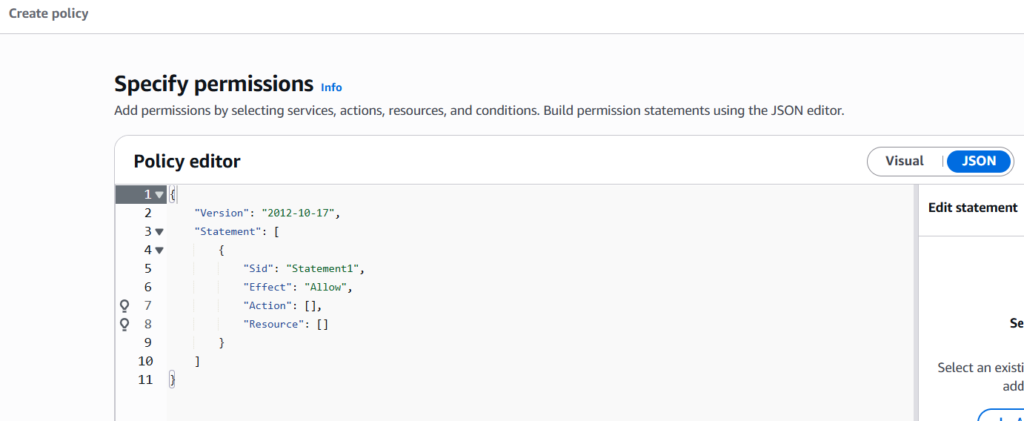
The IAM policy is useful to only assign S3 bucket list and get items permission to the newly created user. This way we are giving the IAM least access privileges.
Go ahead and create a new policy using JSON format and use below permissions as I specified.
{
“Version”: “2012-10-17”,
“Statement”: [
{
“Effect”: “Allow”,
“Action”: “s3:ListBucket”,
“Resource”: “arn:aws:s3:::migration-bucket-cloudnerchko”
},
{
“Effect”: “Allow”,
“Action”: “s3:GetObject”,
“Resource”: “arn:aws:s3:::migration-bucket-cloudnerchko/*”
}
]
}
Attach Policy:
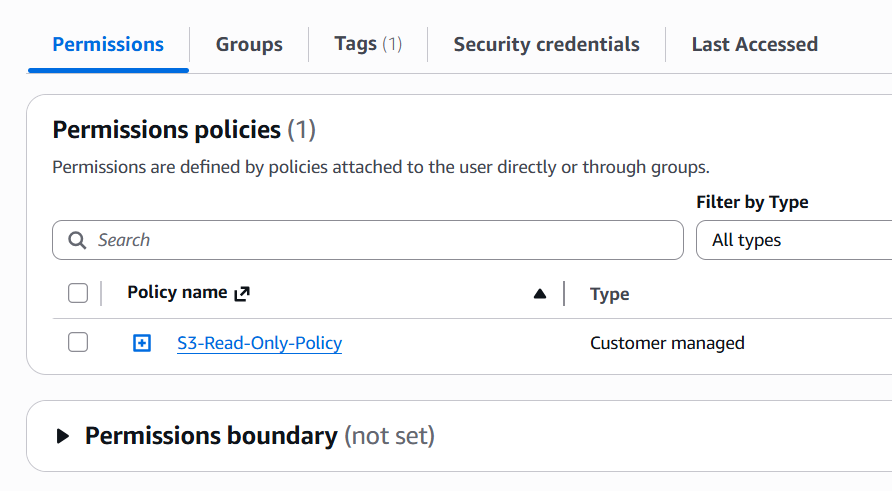
Add this newly created policy to the IAM user which we created newly. Navigate to IAM, select the user, click on permissions tab and attach the IAM policy.
Generate Credentials:
Go to the IAM user, click on security credentials and create new keys under Access keys. Please download the keys or note it down somewhere safe.
We will use these keys for accessing the S3 bucket and download the Dynamo DB export file.
That wraps up the AWS requirements, and we can move on to the Azure pre-requisites.
Azure requirements:
Login to the Azure portal and create a new Azure Cosmos DB NoSQL API account with a serverless tier. Watch this video to create one account.
In the newly created Cosmos DB account, create a database and a container. Please note that while creating a container, add the partition key id that you have noted down during AWS Dynamo DB setup.
Copy the Account URI from the overview page, account primary key from connection strings and add these as a masked variables in GitLab CI/CD settings.
This wraps up the blog post both on Azure and AWS end. It’s time to review the key takeaways of this post.
Conclusion:
Successful migration from Dynamo DB to Cosmos DB needs careful preparation done at both Azure and AWS cloud as well. I hope you understood the pre-requisites from this blogpost. You can always do better than me as there are many better solutions to a given problem.
Please ensure that you are adding an extra layer of security to the solution that you build on cloud or anywhere else.
Disclaimer: This content is human-written and reflects hours of manual effort. The included code was AI-generated and then human-refined for accuracy and functionality.