
When I was working on creating and scheduling an agent job, I encountered the below error message.
Error Message
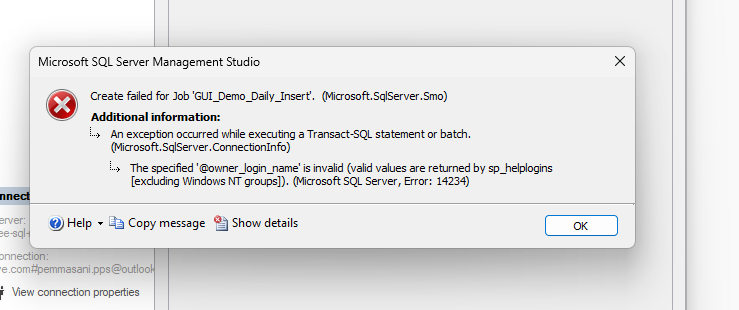
Create failed for Job ‘GUI_Demo_Daily_Insert’. (Microsoft.SqlServer.Smo)
Additional information:
An exception occurred while executing a Transact-SQL statement or batch. (Microsoft.SqlServer.ConnectionInfo)
The specified ‘@owner_login_name’ is invalid (valid values are returned by sp_helplogins [excluding Windows NT groups]). (Microsoft SQL Server, Error: 14234)
Below is the screenshot in SSMS tool.
What happened?
I was working on creating an agent job by logging into SSMS tool using Entra ID (Email and Password).
When I saved the Job creation screen after setting the job steps and schedule, I was getting the above error.
The owner’s name mentioned in the agent job to execute by default is my email id.
Resolution
- Change the Job Owner to sa (Recommended for Agent Jobs)
The quickest and most common workaround when using SSMS is to simply change the job owner to the System Administrator (sa) account or a dedicated SQL Server Agent service account instead of your personal Entra ID email. - Use any other SQL login name, in my case, I had used SQL MI admin username.
or try to run the below query to find all the valid logins
EXEC sp_helplogins;
Look through the results for your account. Copy the exact string listed in the LoginName column and paste that exactly into the Owner field in the job properties.
In SSMS, go back to the General page of the New Job dialog.
In the Owner text box, change your email address to sa or admin username of SQL MI.
Click OK to create the job.
Try to save the job and now it won’t throw any error. You can test your agent job using TSQL or in SSMS tool.
The reason for the issue is mostly that SQL MI doesn’t recognize Entra Id names as owner name in order to execute the job.
Have questions? If you run into any issues configuring your SQL Agent jobs, or if you need help troubleshooting a specific automation task, feel free to reach out. Drop a comment below or contact me directly, and I’ll be happy to help you get your jobs running smoothly.
For more Technical blog posts, visit CloudNerchuko.in