
Azure SQL Managed Instance allows administrators to automatically start and stop instances on a predefined schedule. This feature pauses compute and licensing billing during off-hours while retaining your data, making it an excellent cost-control measure for development, testing, or workloads that do not require 24/7 availability.
Note: Stopping a SQL Managed Instance may take a few minutes, while starting it can take over 20 minutes.
Step 1: Access the Start/Stop Schedule Menu
- Sign in to the Azure portal and locate your SQL Managed Instance resource.
- In the left-hand navigation pane, find the resource menu and go to Settings and select Start/Stop Schedule.
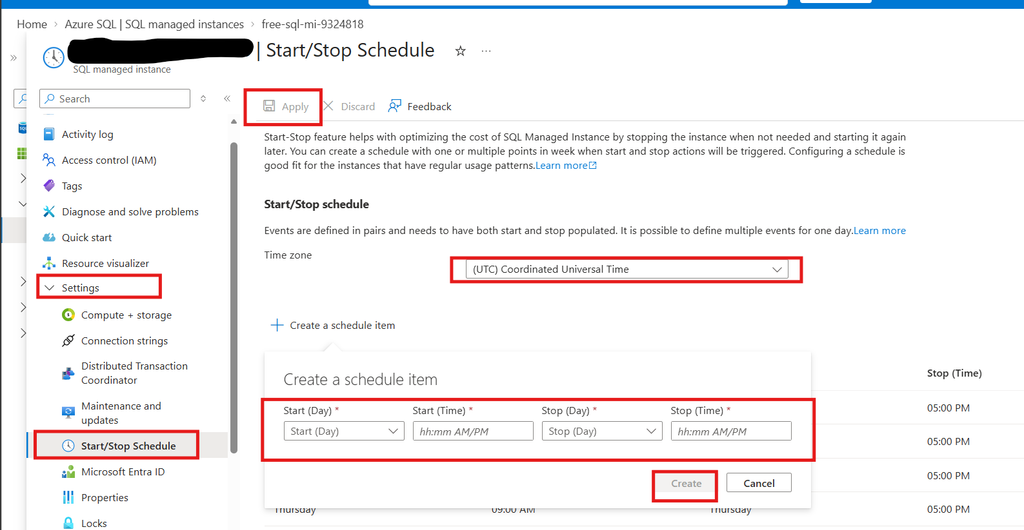
Step 2: Define the Time Zone and Schedule Slots
- On the Start/Stop Schedule pane, select your preferred time zone from the dropdown list to ensure your automation aligns with your local business hours.
- Click to add or create a schedule item.
- You can configure multiple stop-and-start slots within the same day to precisely match your workload patterns (e.g., running the instance only during morning and evening shifts). When defining these slots, you must follow Azure’s scheduling rules:
- Complete Pairs: Every scheduled item must be defined as a pair; it must have both a stop and a start time populated.
- No Overlaps: Scheduled time pairs cannot overlap with one another.
- One-Hour Minimum: The time span between any two successive actions must be at least one hour. For example, if you schedule a start for 10:00 AM, the earliest you can schedule the subsequent stop is 11:00 AM.
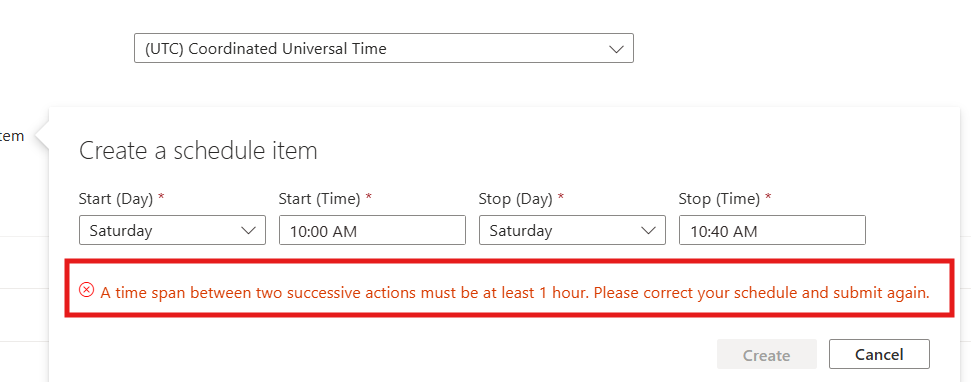
Step 3: Apply the Schedule
Review your configured time slots and save the schedule. The automation engine will immediately adopt the new rules for upcoming slots.
What Happens After Scheduling?
Once your schedule is active, the instance state will automatically transition according to your defined pairs, impacting both billing and system behavior:
- Billing Suspension: When the instance reaches a scheduled stop time, it goes offline. Compute and license charges are suspended for the duration of the stopped state, reducing your overall Azure spend. Storage charges for your data and backups still apply.
- Platform Maintenance Overrides: Because SQL Managed Instance is a fully managed Platform as a Service (PaaS), urgent system maintenance might require the instance to be online. If mandatory maintenance occurs during your scheduled stop window, Azure will automatically start the instance, keep it online to perform the update, and stop it once complete. Compute and license charges will apply for the duration the instance is online for this maintenance.
- Active Operation Conflicts: If a scheduled stop is triggered while a separate management operation is in progress (such as an active vCore scaling operation), the platform will wait 10 minutes and retry the stop command. If the conflicting operation is still running after 10 minutes, the stop action is skipped entirely for that cycle.
Read below articles to know more: