
If you have migrated your databases to the cloud, you already know the incredible benefits of Azure SQL Managed Instance (SQL MI). It offers near 100% compatibility with the latest SQL Server engine, automated patching, and robust security.
Now, here comes the biggest risk and it is the final bill on your invoice for consuming the SQL Managed Instance. Because SQL MI provides dedicated, isolated environments, it can quickly become one of the most expensive line items on your Azure bill if left unchecked. The good news? You have far more control over these costs than you might realize.
I have written a guide to help you trim the fat, optimize your workloads, and keep your SQL MI costs strictly under control.
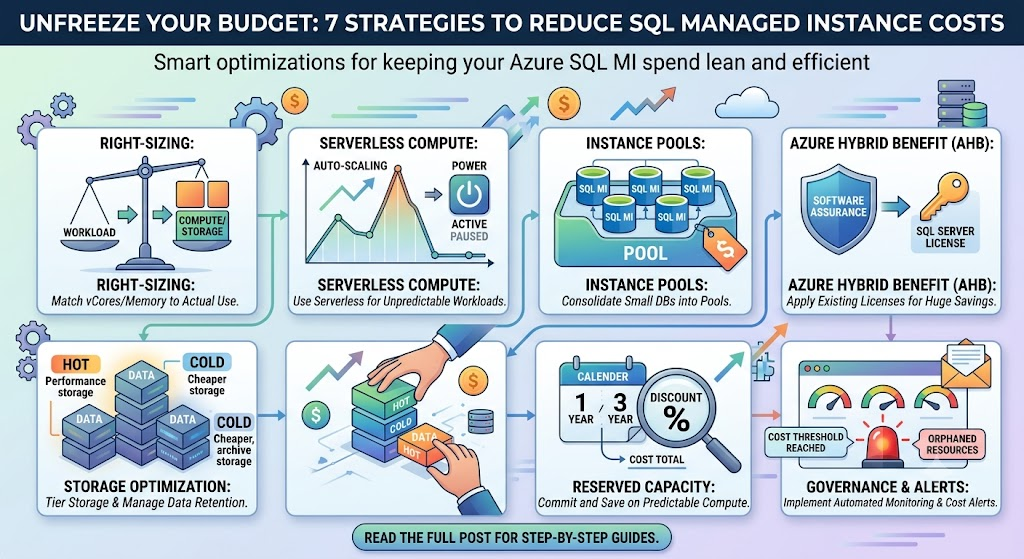
1. Right-Size Your Compute and Storage
The most common mistake teams make during migration is the “lift and shift” approach provisioning the exact same number of vCores and memory in the cloud as they had on-premises.
Instead, I suggest using Azure Migrate solution which recommends the right SKU sizes for your target SQL MI. We’ll install an appliance on your SQL Server hosted in an on-prem VM, add the SQL hostname details, and have it track and send performance data over a set number of days you choose to help determine the target SKU size.
That is another story and you can read more about Azure Migrate documentation | Microsoft Learn
You can also use Azure Data Migration Assistant tool to get the SKU recommendations. Currently this tool is deprecated and if you want to know how you can get SKU recommendations using DMA, follow the tutorial Get Azure SQL SKU recommendations (Data Migration Assistant) – SQL Server | Microsoft Learn or listen to the video How to find the right Azure SQL SKU for your SQL workloads | Microsoft Learn
2. Leverage Azure Hybrid Benefit (AHB)
If you already own on-premises SQL Server licenses with active Software Assurance, you are sitting on a goldmine. Azure Hybrid Benefit allows you to bring those existing licenses to the cloud.
- The Impact: Applying AHB can slash your SQL MI compute costs by up to 55%. If you aren’t checking the “Azure Hybrid Benefit” box during deployment, you are essentially paying for the same software twice.
3. Lock in Savings with Reserved Capacity
Cloud providers love predictable revenue, and they will pay you handsomely for it in the form of deep discounts. If you know you will be running a SQL MI instance for the foreseeable future, switch from “Pay-As-You-Go” to Reserved Capacity.
For regular users practicing SQL MI, the cost can be unaffordable, but it’s highly beneficial for large companies running instances across multiple environments.
- The Impact: By committing to a 1-year or 3-year term, you can save up to 33% (and sometimes more when combined with AHB). The best part? Microsoft allows you to exchange or cancel reservations if your business needs change, giving you flexibility alongside the savings.
The only catch here is that you need to pay the amount upfront based on commitment.
4. Challenge Your Service Tier (Do you really need Business Critical?)
SQL MI comes in two primary service tiers: General Purpose and Business Critical. Most of the customers prefer General Purpose tier and ignore Business Critical service tier. The cost of BC tier is almost twice of that General Purpose tier.
- Action: Audit your databases. Unless an application explicitly requires ultra-low I/O latency or Always On availability groups with read scale out, downgrade it to General Purpose. Most standard workloads run perfectly fine on the General-Purpose tier.
If you enabled Zone redundancy on the SQL MI with Business-critical tier, then costs will even double compared to Local redundancy.
SQL MI Standby replica: By making the secondary SQL MI as standby, you can save on licensing costs on the vcores. Read my other article to know more about Azure SQL MI Standby replica and Read replica functionality
5. Utilize Instance Pools for Smaller Workloads
If you have several small SQL Server instances (e.g., 2 vCores each) that don’t need intense compute power, provisioning a full Managed Instance for each one is incredibly inefficient and expensive.
- Action: Use SQL MI Instance Pools. This feature allows you to pre-provision compute resources at the pool level and then deploy multiple smaller instances (even 2-vCore instances) inside that pool. This allows you to consolidate resources and drastically cut the cost of hosting smaller databases.
6. Optimize Dev/Test Environments
Production environments need high availability whereas Development and Testing environments do not.
- Action: Move your non-production workloads to Azure Dev/Test pricing subscriptions, which removes the software licensing cost entirely, charging you only for the underlying compute. Furthermore, enforce strict governance: if a Dev/Test instance isn’t needed over the weekend, automate a process to tear it down and restore it from a backup on Monday morning.
7. Leverage the Start/Stop Schedule (for Lower Environments)
One of the most requested features for SQL MI was the ability to simply turn it off when not in use. Microsoft allows you to stop and start your managed instances, completely pausing compute billing while the instance is stopped (you only pay for storage).
For a standalone instance, you can easily set up an automated schedule. For example, configuring your Dev instance to automatically stop at 7:00 PM on Friday and start at 7:00 AM on Monday saves you over 60 hours of compute costs every single weekend.
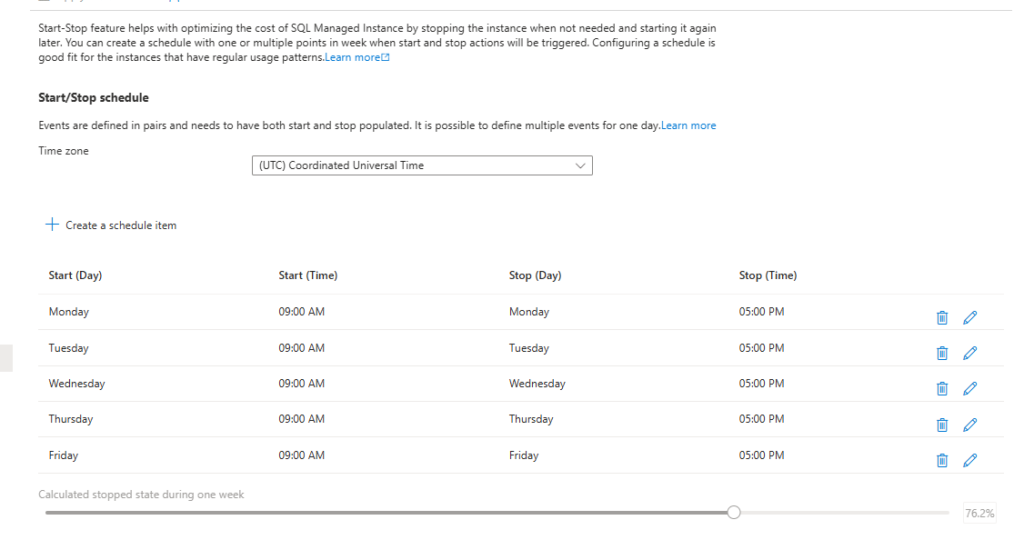
I have a free SQL Managed Instance with the following start/stop schedule. Using this method, I can limit its to just 30% of the time each week.
The Failover Group Catch There is a crucial architectural limitation to be aware of: you cannot stop an instance if it is part of a failover group. The continuous data replication required to maintain the failover state actively prevents the instance from shutting down.
If you absolutely need to pause compute on instances tied to a failover group, you must follow this workaround:
- Remove the failover group to break the replication link.
- Stop the instances (Primary and Secondary) independently.
- Start the instances when needed again.
- Recreate the failover group and allow the initial seeding to complete.
CRITICAL WARNING: This workaround should only be used in lower environments like Dev and QA to cut costs. Never tear down failover groups in your Production environment just to save a few dollars over the weekend, as it temporarily destroys your disaster recovery posture and forces a heavy data-reseeding operation when recreated.
The biggest drawback of SQL MI is its startup time. Stopping the instance takes about a minute, but restarting it can take nearly 20 to 30 minutes.
Let me know which of the above strategies is simpler to setup. For me, Start/Stop schedule is awesome feature and reduce most of the costs for SQL MI.
Post a comment if you have any feedback or suggestion or any other tips on reducing the Costs of SQL MI.
Read Also my other blog posts:
Azure SQL DB vs Azure SQL Managed Instance (With Diagrams)
What is the difference between SQL Server and SQL Managed Instance?