
Welcome back to another deep dive on Cloud Nerchuko. If you have ever tried setting up a Linked Server from an Azure SQL Managed Instance (MI) to an Azure SQL Database using a System-Assigned Managed Identity, you know that Azure networking can sometimes feel like navigating a maze of invisible walls.
Recently, I went through the entire series of connection failures, timeouts, and hidden Azure routing traps to get this architecture working. To save you hours of troubleshooting, I have documented every single error I faced along the way and the exact solution to fix each one.
The blog post “How to Create Linked Servers in SQL MI Using Entra ID“ covers everything you need to know about setting up a linked server with Entra ID from SQL MI to other Azure cloud databases.
Know the things before you dive into the current blogpost.
I set up an Azure SQL DB using the free offer, with public access enabled and private access disabled.
I set up an Azure SQL Managed Instance using the free offering in a virtual network with public access enabled, making it easy to connect from my personal laptop to create a linked server.
I turned on system assigned identity in SQL DB even though turning on SQL DB system identity is not required.
Here is the step-by-step journey of troubleshooting a Linked Server connection in Azure using Entra ID.
Error 1: The Authentication Failure (Error 7399)
The Error Message:
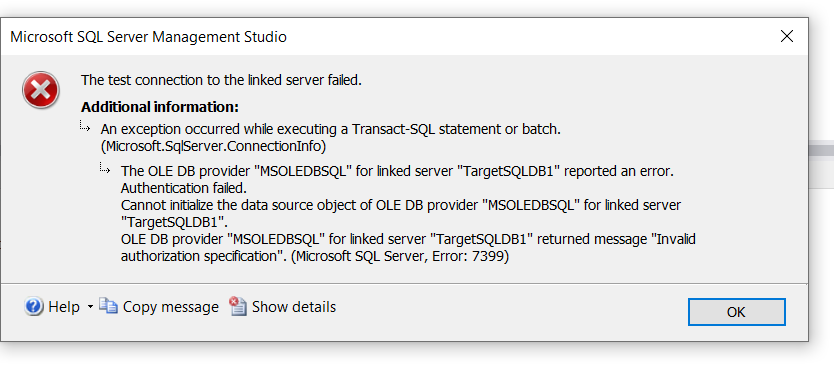
TITLE: Microsoft SQL Server Management Studio
The test connection to the linked server failed.
ADDITIONAL INFORMATION:
An exception occurred while executing a Transact-SQL statement or batch. (Microsoft.SqlServer.ConnectionInfo)
The OLE DB provider “MSOLEDBSQL” for linked server “TargetSQLDB1” reported an error. Authentication failed.
Cannot initialize the data source object of OLE DB provider “MSOLEDBSQL” for linked server “TargetSQLDB1”.
OLE DB provider “MSOLEDBSQL” for linked server “TargetSQLDB1” returned message “Invalid authorization specification”. (Microsoft SQL Server, Error: 7399)For help, click: https://docs.microsoft.com/sql/relational-databases/errors-events/mssqlserver-7399-database-engine-error
Why it happened:
The very first hurdle was telling the Linked Server how to authenticate. By default, the OLE DB provider doesn’t know you want to use the Managed Instance’s Managed Identity, so it throws an authorization error. In the script, I didn’t initially provide the provider string parameter thinking that it might choose Entra Id authentication.
The Solution:
I had to explicitly include ActiveDirectoryMSI in the provider string (@provstr) of the sp_addlinkedserver script, and once I reran the script, the error was fixed.
EXEC master.dbo.sp_addlinkedserver
    @server = N'TargetSQLDB',
    @srvproduct=N'',
    @provider=N'MSOLEDBSQL',
    @datasrc=N'cloudnerchuko.database.windows.net',
    @catalog=N'free-sql-db-8623360',
    @provstr=N'Encrypt=yes;Authentication=ActiveDirectoryMSI;'; -- The crucial fix
Error 2: The Network Block (Error 64)
The Error Message:
Short error: “A network-related or instance-specific error has occurred… Server is not found or not accessible.” (Error: 64)
Long error: An exception occurred while executing a Transact-SQL statement or batch. (Microsoft.SqlServer.ConnectionInfo)
——————————
Named Pipes Provider: Could not open a connection to SQL Server [64].
OLE DB provider “MSOLEDBSQL” for linked server “TargetSQLDB” returned message “Login timeout expired”.
OLE DB provider “MSOLEDBSQL” for linked server “TargetSQLDB” returned message “A network-related or instance-specific error has occurred while establishing a connection to SQL Server. Server is not found or not accessible. Check if instance name is correct and if SQL Server is configured to allow remote connections. For more information see SQL Server Books Online.”. (Microsoft SQL Server, Error: 64)
Why it happened:
We already know that once the SQL MI is created, it won’t allow any outbound connectivity on NSG rules for port 1433. The default outbound rule available for port 1433 is allowed by default to the Virtual Network.
After fixing authentication, the physical network blocked the request. My SQL Managed Instance’s Network Security Group (NSG) had an outbound rule for port 1433, but the destination was set to Virtual Network of SQL MI. Since Azure SQL Database is a public PaaS service, the traffic was being killed before it even left the virtual network.
The Solution:
I updated the outbound NSG rule on the SQL MI subnet:
- Destination Port: 1433
- Destination: Service Tag -> Sql (This allows traffic to leave the VNet and reach Azure SQL public endpoints).

Error 3: The SNAT Black Hole (Error 258 Timeout)
The Error Message:
Short Error: “Login timeout expired… Unable to complete login process due to delay in login response.” (Error: 258)
Long Error:
===================================
The test connection to the linked server failed.
===================================
An exception occurred while executing a Transact-SQL statement or batch. (Microsoft.SqlServer.ConnectionInfo)
——————————
Program Location:
at Microsoft.SqlServer.Management.Common.ServerConnection.ExecuteNonQuery(String sqlCommand, ExecutionTypes executionType, Boolean retry)
at Microsoft.SqlServer.Management.Smo.ExecutionManager.ExecuteNonQuery(String cmd, Boolean retry)
at Microsoft.SqlServer.Management.Smo.LinkedServer.TestConnection()
at Microsoft.SqlServer.Management.UI.VSIntegration.ObjectExplorer.LinkedServerConnectionTest.Invoke()
===================================
TCP Provider: Timeout error [258].
OLE DB provider “MSOLEDBSQL” for linked server “TargetSQLDB” returned message “Login timeout expired”.
OLE DB provider “MSOLEDBSQL” for linked server “TargetSQLDB” returned message “Unable to complete login process due to delay in login response”. (Framework Microsoft SqlClient Data Provider)
——————————
For help, click: https://docs.microsoft.com/sql/relational-databases/errors-events/mssqlserver-258-database-engine-error
Why it happened:
Traffic was now successfully leaving the SQL MI but dropping into a black hole. Because the SQL MI lives in a private subnet, Azure was performing Source Network Address Translation (SNAT) and replacing its private IP with a random public IP. The target Azure SQL Database firewall didn’t recognize this random IP, so it silently dropped the connection.
The Solution (The Private Route):
Instead of messing with public IP whitelists, I secured the connection internally.
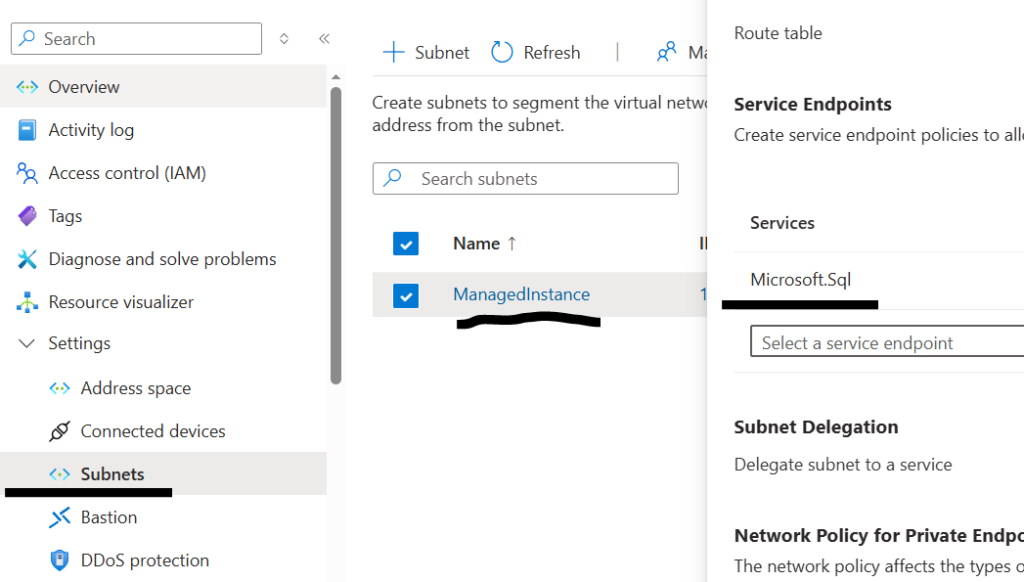
- Enabled a Service Endpoint: Went to the SQL MI’s Virtual Network Subnet and enabled the Microsoft.Sql Service Endpoint.
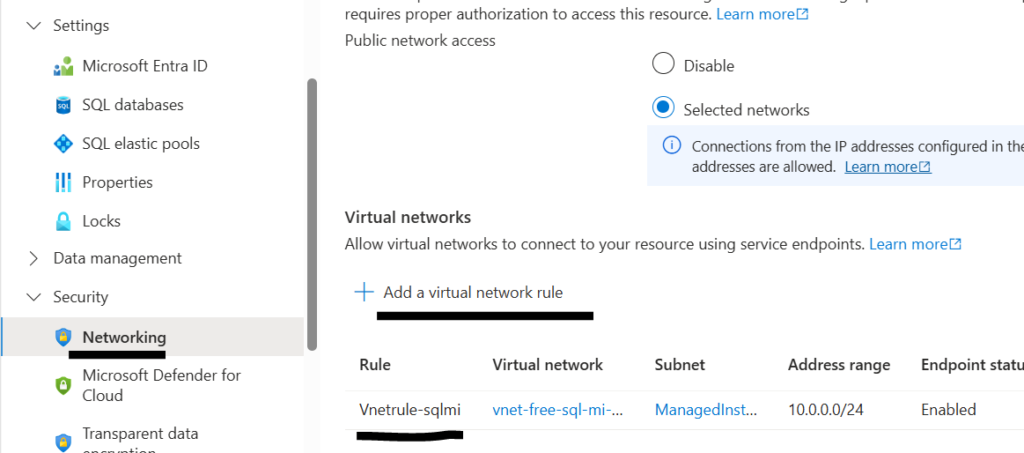
- Added a VNet Rule: Went to the target Azure SQL Database’s Networking tab and added a “Virtual network rule” pointing to the SQL MI’s specific subnet.
Note: I also had to run a CREATE USER [sql-mi-name] FROM EXTERNAL PROVIDER; script on the target DB to ensure the Managed Identity was granted access!
Error 4: The IMDS Token Block (Error 12029 / 0x2EFD)
The Error Message:
“Failed to authenticate the user ” in Active Directory… Error 12029 opening URLhttp://169.254.169.254/metadata/identity/oauth2/token“
Why it happened:
While troubleshooting the previous timeout, I tried running an ad-hoc OPENROWSET query to test the network. OPENROWSET queries in Azure SQL MI are heavily sandboxed and do not have the OS-level permissions required to reach out to the internal Azure Instance Metadata Service (IMDS) to generate an OAuth2 token for the Managed Identity.
The Solution:
I stopped using OPENROWSET for troubleshooting. To properly test Managed Identity authentication, you must rely on testing the actual Linked Server object via SSMS.
Error 5: The TCP Fallback (Named Pipes Error 53)
The Error Message:
Short Error: “Named Pipes Provider: Could not open a connection to SQL Server [53].”
Long Error:
===================================
The test connection to the linked server failed.
===================================
An exception occurred while executing a Transact-SQL statement or batch. (Microsoft.SqlServer.ConnectionInfo)
——————————
Program Location:
at Microsoft.SqlServer.Management.Common.ServerConnection.ExecuteNonQuery(String sqlCommand, ExecutionTypes executionType, Boolean retry)
at Microsoft.SqlServer.Management.Smo.ExecutionManager.ExecuteNonQuery(String cmd, Boolean retry)
at Microsoft.SqlServer.Management.Smo.LinkedServer.TestConnection()
at Microsoft.SqlServer.Management.UI.VSIntegration.ObjectExplorer.LinkedServerConnectionTest.Invoke()
===================================
Named Pipes Provider: Could not open a connection to SQL Server [53].
OLE DB provider “MSOLEDBSQL” for linked server “TargetSQLDB” returned message “Login timeout expired”.
OLE DB provider “MSOLEDBSQL” for linked server “TargetSQLDB” returned message “A network-related or instance-specific error has occurred while establishing a connection to SQL Server. Server is not found or not accessible. Check if instance name is correct and if SQL Server is configured to allow remote connections. For more information see SQL Server Books Online.”. (Framework Microsoft SqlClient Data Provider)
——————————
For help, click: https://docs.microsoft.com/sql/relational-databases/errors-events/mssqlserver-53-database-engine-error
Why it happened:
Azure SQL Database strictly requires TCP/IP and does not support Named Pipes. Because my connection string was slightly ambiguous, the SQL engine failed its initial TCP handshake, panicked, and fell back to trying Named Pipes which immediately crashed.
The Solution:
I forced the provider to use tcp: by hardcoding the tcp: prefix and the ,1433 port directly into the @datasrc parameter of the Linked Server script.
@datasrc=N'tcp:cloudnerchuko.database.windows.net,1433'Error 6: The Final Boss (Error 258 Timeout – The Redirect Trap)
The Error Message:
Short Error: “Login timeout expired… The wait operation timed out.” (Error 258)
Long Error:
TITLE: Microsoft SQL Server Management Studio
——————————
The test connection to the linked server failed.
——————————
ADDITIONAL INFORMATION:
An exception occurred while executing a Transact-SQL statement or batch. (Microsoft.SqlServer.ConnectionInfo)
——————————
TCP Provider: Timeout error [258].
OLE DB provider “MSOLEDBSQL” for linked server “TargetSQLDB1” returned message “Login timeout expired”.
OLE DB provider “MSOLEDBSQL” for linked server “TargetSQLDB1” returned message “Unable to complete login process due to delay in login response”. (Microsoft SQL Server, Error: 258)
For help, click: https://docs.microsoft.com/sql/relational-databases/errors-events/mssqlserver-258-database-engine-error
Why it happened:
Even with perfect outbound NSGs, a configured Service Endpoint, explicit VNet rules, and forced TCP, the connection timed out again during the login phase. I got frustrated and didn’t know what is missing after setting everything up.
Google Gemini helped me to understand the issue of using Redirect vs Proxy in SQL DB Network connectivity settings.
This happens because of Azure’s default Redirect Connection Policy for internal traffic. The SQL MI connects to the Azure SQL Gateway on port 1433, but the gateway tells it to “redirect” and connect directly to a backend node on a random port between 11000 and 11999. If your network isn’t perfectly configured for that high-port handoff over a Service Endpoint, the connection hangs.
I didn’t enable the outbound security rule for ports 11,000–11,999 in the SQL MI subnet. Another option could be to create a new outbound rule in the SQL MI NSG that allows ports 11,000–11,999 to access the SQL DB. This way, we can keep the Redirect mode on Azure SQL DB without switching it to Proxy mode.
The Solution:
I bypassed the redirect behavior entirely.
- Went to the target Azure SQL Database in the Azure Portal.
- Navigated to Networking -> Connectivity tab.
- Changed the Connection Policy from Default to Proxy.
By forcing the policy to Proxy, the Azure SQL Gateway acts as a permanent middleman, keeping all traffic safely locked to port 1433. After a 60-second wait for the policy to apply, the Linked Server connection test succeeded instantly!
Use the SQL query editor to test the linked server connectivity or use SSMS tool to test.
EXEC sp_testlinkedserver N'TargetSQLDB';Summary
Building resource architectures in Azure requires a solid understanding of how identity and networking overlap. If you are setting up this architecture for your own projects, remember the golden rules: force TCP, use Service Endpoints to avoid SNAT, ensure your Managed Identity exists on the target database, and when in doubt, switch your connection policy to Proxy!
Also Read:
How to create a SQL MI Linked Server using TSQL Scripts